Line Charts
Install:
dotnet add package MatPlotLibNet
Tips: Try
.WithBrowserInteraction()to make your line chart zoomable in the browser. Use.WithSymlogYScale()for data spanning large ranges. Switch themes with.WithTheme(Theme.Nord).
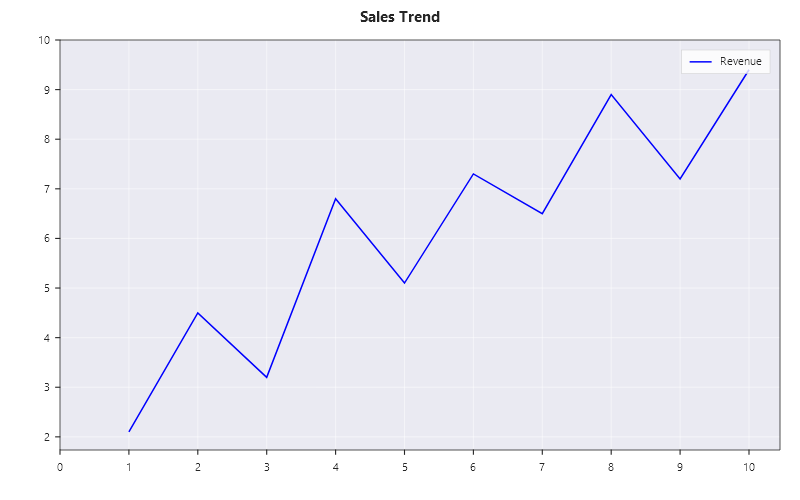
Simple line chart
double[] x = [1, 2, 3, 4, 5, 6, 7, 8, 9, 10];
double[] y = [2.1, 4.5, 3.2, 6.8, 5.1, 7.3, 6.5, 8.9, 7.2, 9.4];

Plt.Create()
    .WithTitle("Sales Trend")
    .WithTheme(Theme.Seaborn)
    .WithSize(800, 500)
    .Plot(x, y, line => { line.Color = Colors.Blue; line.Label = "Revenue"; })
    .Save("chart.svg");
Line styles, markers, and width
Set the line properties in the configure lambda:
Plt.Create()
    .WithTitle("Line Styles")
    .AddSubPlot(1, 1, 1, ax =>
    {
        ax.Plot(x, y1, s =>
        {
            s.Color = Colors.Blue;
            s.LineStyle = LineStyle.Solid;
            s.LineWidth = 2.0;
            s.Label = "Solid (2px)";
        });
        ax.Plot(x, y2, s =>
        {
            s.Color = Colors.Red;
            s.LineStyle = LineStyle.Dashed;
            s.LineWidth = 1.5;
            s.Label = "Dashed";
        });
        ax.Plot(x, y3, s =>
        {
            s.Color = Colors.Green;
            s.LineStyle = LineStyle.DashDot;
            s.LineWidth = 1.0;
            s.Marker = MarkerStyle.Circle;
            s.MarkerSize = 6;
            s.MarkEvery = 2;  // marker every 2nd point
            s.Label = "DashDot + markers";
        });
        ax.WithLegend(LegendPosition.UpperLeft);
    })
    .Save("line_styles.svg");
Smooth interpolation
Set Smooth to true to draw the line as a Fritsch-Carlson cubic spline, which gives a smooth curve:
Plt.Create()
    .AddSubPlot(1, 1, 1, ax => ax
        .Plot(x, y, s =>
        {
            s.Smooth = true;
            s.SmoothResolution = 20;  // 20 sub-points per interval
            s.Color = Css4Colors.Purple;
            s.Label = "Smoothed";
        })
        .Scatter(x, y, s =>
        {
            s.Color = Colors.Red;
            s.MarkerSize = 8;
            s.Label = "Data points";
        })
        .WithLegend())
    .Save("smooth_line.svg");
Step functions
Control step placement with DrawStyle:
Plt.Create()
    .WithSize(900, 400)
    .AddSubPlot(1, 3, 1, ax => ax
        .Plot(x, y, s => { s.DrawStyle = DrawStyle.StepsPost; s.Label = "StepsPost"; })
        .WithTitle("StepsPost").WithLegend())
    .AddSubPlot(1, 3, 2, ax => ax
        .Plot(x, y, s => { s.DrawStyle = DrawStyle.StepsPre; s.Label = "StepsPre"; })
        .WithTitle("StepsPre").WithLegend())
    .AddSubPlot(1, 3, 3, ax => ax
        .Plot(x, y, s => { s.DrawStyle = DrawStyle.StepsMid; s.Label = "StepsMid"; })
        .WithTitle("StepsMid").WithLegend())
    .TightLayout()
    .Save("step_styles.svg");
Marker customization
Plt.Create()
    .AddSubPlot(1, 1, 1, ax => ax
        .Plot(x, y, s =>
        {
            s.Marker = MarkerStyle.Diamond;
            s.MarkerSize = 10;
            s.MarkerFaceColor = Colors.Gold;
            s.MarkerEdgeColor = Css4Colors.DarkRed;
            s.MarkerEdgeWidth = 1.5;
            s.Color = Css4Colors.DarkRed;
            s.Label = "Diamond markers";
        })
        .WithLegend())
    .Save("marker_custom.svg");
All marker shapes
MarkerStyle has 13 shapes. The shared MarkerRenderer draws every one of them:
| Shape | SVG primitive | Notes |
|---|---|---|
Circle |
<circle> |
Default. Radius = MarkerSize / 2. |
Square |
<rect> |
Edge = MarkerSize. |
Triangle / TriangleDown / TriangleLeft / TriangleRight |
<polygon> (3 vertices) |
Equilateral; orientation as named. |
Diamond |
<polygon> (4 vertices) |
Square rotated 45°. |
Pentagon / Hexagon |
<polygon> (5 / 6 vertices) |
Regular N-gon, flat-top-up variant. |
Star |
<polygon> (10 vertices) |
5-point star, inner radius ≈ 0.38 × outer (matplotlib parity). |
Cross / Plus |
<line> × 2 |
Outline-only (no fill). Stroke thickness falls back to MarkerSize / 8 when MarkerEdgeWidth is zero. |
None |
— | No marker drawn. |
The shared MarkerRenderer draws every shape the same way for lines, steps and scatters, and the legend entry of
a series draws the marker the series has: a triangle in the plot is a triangle in the legend, and a line with
Marker = MarkerStyle.None shows no marker there either.
Missing values: a gap, not a bridge
A double.NaN in the data is a value that was never measured, and a line breaks there, as in matplotlib. It is not
drawn straight across the gap, and a point alone between two gaps is drawn as its marker with no line. The same
holds for a step line, a filled area and a stacked area, for an infinity, and for a value a log axis cannot place
(0 or less). The automatic range leaves missing values out.
double[] hours = [0, 1, 2, 3, 4, 5, 6, 7];
double[] temp  = [11.2, 11.8, double.NaN, double.NaN, 14.1, 15.0, double.NaN, 15.9];

Plt.Create()
    .AddSubPlot(1, 1, 1, ax => ax
        .Plot(hours, temp, s => { s.Marker = MarkerStyle.Circle; s.Label = "Sensor 3"; })
        .SetXLabel("Hour")
        .SetYLabel("Temperature (°C)"))
    .Save("line_gaps.svg");
The line above is drawn in three pieces: hours 0 to 1, hours 4 to 5, and the point at hour 7 on its own.
Grid and spine control
Plt.Create()
    .AddSubPlot(1, 1, 1, ax => ax
        .Plot(x, y, s => s.Label = "Data")
        // Grid styling
        .WithGrid(g => g with
        {
            Color = Colors.LightGray,
            LineStyle = LineStyle.Dotted,
            LineWidth = 0.5,
            Alpha = 0.8
        })
        // Hide top and right spines (matplotlib style)
        .HideTopSpine()
        .HideRightSpine()
        // Axis ranges
        .SetXLim(0, 12)
        .SetYLim(0, 12)
        .SetXLabel("Time (s)")
        .SetYLabel("Amplitude")
        .WithLegend())
    .Save("grid_spines.svg");
Secondary Y-axis
Plot two datasets with different scales on the same axes:
Plt.Create()
    .AddSubPlot(1, 1, 1, ax => ax
        .Plot(x, temperature, s => { s.Color = Colors.Red; s.Label = "Temperature (°C)"; })
        .SetYLabel("Temperature (°C)")
        .WithSecondaryYAxis(sec =>
        {
            sec.Plot(x, pressure, s => { s.Color = Colors.Blue; s.Label = "Pressure (hPa)"; });
            sec.SetYLabel("Pressure (hPa)");
        })
        .WithLegend())
    .Save("dual_axis.svg");
To name each line where it ends and colour each axis like its line, so the chart needs no legend, see Direct labels and axis colours.
PropCycler — automatic color + line style cycling
When plotting multiple series, PropCycler automatically assigns distinct colors and line styles:
var cycler = new PropCyclerBuilder()
    .WithColors(Colors.Tab10Blue, Colors.Orange, Colors.Green, Colors.Red)
    .WithLineStyles(LineStyle.Solid, LineStyle.Dashed, LineStyle.Dotted, LineStyle.DashDot)
    .Build();

double[] x = Enumerable.Range(0, 60).Select(i => i * 0.2).ToArray();

Plt.Create()
    .WithTitle("PropCycler — four series, cycling color + line style")
    .WithTheme(Theme.CreateFrom(Theme.Default).WithPropCycler(cycler).Build())
    .AddSubPlot(1, 1, 1, ax =>
    {
        ax.Plot(x, x.Select(v => Math.Sin(v)).ToArray(),       s => s.Label = "sin(x)");
        ax.Plot(x, x.Select(v => Math.Sin(v + 1.0)).ToArray(), s => s.Label = "sin(x+1)");
        ax.Plot(x, x.Select(v => Math.Sin(v + 2.0)).ToArray(), s => s.Label = "sin(x+2)");
        ax.Plot(x, x.Select(v => Math.Sin(v + 3.0)).ToArray(), s => s.Label = "sin(x+3)");
        ax.WithLegend(LegendPosition.UpperRight);
    })
    .TightLayout()
    .Save("prop_cycler.svg");
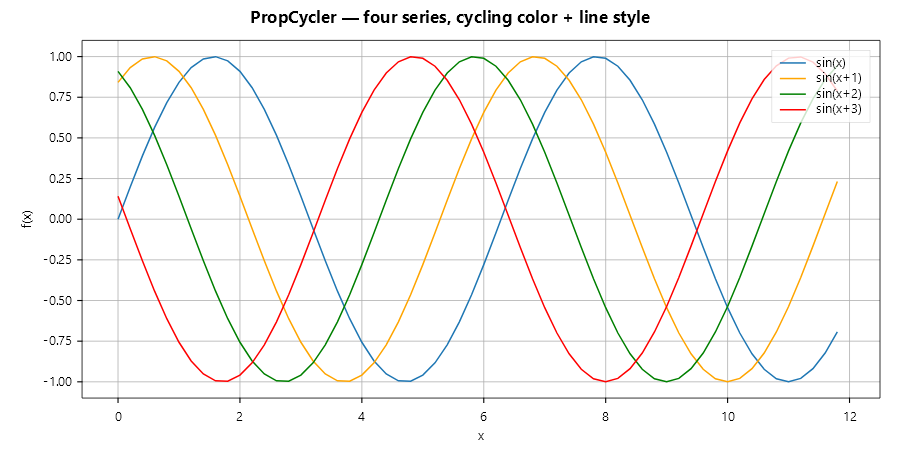
The series at place i takes the cycler's entry i: its colour, line style, line width and marker, in the plot and in
its legend entry. A series that sets one of these itself keeps its own; one that leaves it at what a new series holds
(solid, 1.5 points wide, no marker) takes the cycler's. So under a cycler of dashes, setting LineStyle.Solid on a
series does not force it back to solid: a value equal to the default cannot be told from one left alone. A cycler
that lists only colours changes nothing else. The same rule reaches density curves, ECDFs, regression, signal,
polar and 3-D lines.
LTTB downsampling for large datasets
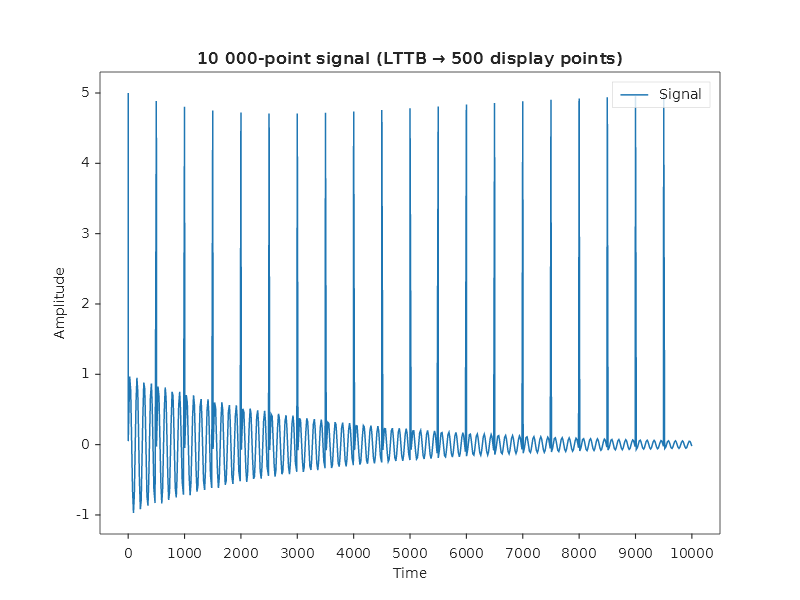
Display 10,000 points as 500 using the Largest-Triangle-Three-Buckets algorithm:
double[] x = Enumerable.Range(0, 10_000).Select(i => (double)i).ToArray();
double[] y = x.Select(v => Math.Sin(v * 0.05) * Math.Exp(-v * 0.0003)).ToArray();

Plt.Create()
    .AddSubPlot(1, 1, 1, ax => ax
        .WithTitle("10 000-point signal (LTTB → 500 display points)")
        .Plot(x, y, line => { line.Label = "Signal"; })
        .WithDownsampling(500))
    .Save("lttb.svg");
Outside legend
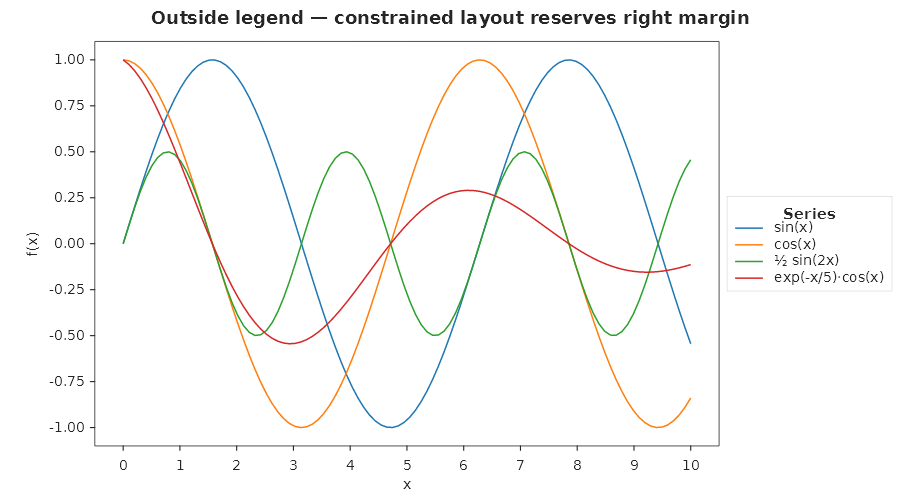
Place the legend outside the plot area. The constrained-layout engine reserves the margin space automatically:
Plt.Create()
    .WithSize(900, 500)
    .TightLayout()
    .AddSubPlot(1, 1, 1, ax =>
    {
        ax.Plot(x, x.Select(v => Math.Sin(v)).ToArray(), s => s.Label = "sin(x)");
        ax.Plot(x, x.Select(v => Math.Cos(v)).ToArray(), s => s.Label = "cos(x)");
        ax.WithLegend(l => l with { Position = LegendPosition.OutsideRight, Title = "Series" });
    })
    .Save("legend_outside.svg");
Legend customization
ax.WithLegend(l => l with
{
    Position = LegendPosition.UpperRight,
    NCols = 2,               // two-column layout
    FontSize = 10,
    Title = "Metrics",
    TitleFontSize = 12,
    FrameOn = true,
    FancyBox = true,          // rounded corners
    Shadow = true,
    FaceColor = Colors.AliceBlue,
    EdgeColor = Colors.SteelBlue,
    FrameAlpha = 0.9,
    MarkerScale = 1.5,
    LabelSpacing = 0.4,
    ColumnSpacing = 1.5,
});
Legend value display
WithLegendValues() appends each labelled XY series' last Y value to its legend
entry. That helps on live or snapshot charts, where the current reading matters as
much as the series name. The value is formatted as F2 with InvariantCulture
(always a decimal dot, never a locale comma).
double[] x = Enumerable.Range(0, 60).Select(i => (double)i).ToArray();

Plt.Create()
    .AddSubPlot(1, 1, 1, ax => ax
        .Plot(x, x.Select(v => Math.Sin(v * 0.2)).ToArray(),        s => s.Label = "sin")
        .Plot(x, x.Select(v => Math.Cos(v * 0.2)).ToArray(),        s => s.Label = "cos")
        .WithLegendValues()   // legend shows e.g. "sin = −0.44"  "cos = 0.90"
        .WithLegend(LegendPosition.UpperRight))
    .Save("legend_values.svg");
The legend then shows entries like "sin = −0.44" and "cos = 0.90". The suffix
updates automatically if you rebuild the figure with fresh data.
You can combine it with the transform-based WithLegend(...) overload. That gives
you full control over the layout and keeps the value suffix:
Plt.Create()
    .AddSubPlot(1, 1, 1, ax => ax
        .Plot(x, y1, s => s.Label = "Alpha")
        .Plot(x, y2, s => s.Label = "Beta")
        .WithLegendValues()
        .WithLegend(l => l with { Position = LegendPosition.OutsideRight, Title = "Channel" }))
    .Save("legend_values_outside.svg");
Series eligibility. Only XYSeries descendants (line, scatter, signal, sparkline…)
contribute a value. Categorical series (bar, pie, treemap…) show their label text
only, and the suffix is silently skipped for them. Unlabelled series never appear in
the legend anyway.
Disabling. Pass false to opt back out: .WithLegendValues(false).
Fluent API reference — LineSeries
| Property | Type | Default | Description |
|---|---|---|---|
Color |
Color |
auto | Line color |
LineStyle |
LineStyle |
Solid |
Solid, Dashed, Dotted, DashDot |
LineWidth |
double |
1.5 |
Line width in pixels |
Marker |
MarkerStyle |
none | Circle, Square, Triangle, Diamond, Star, Cross, Plus, ... |
MarkerSize |
double |
6 |
Marker diameter |
MarkerFaceColor |
Color |
auto | Marker fill color |
MarkerEdgeColor |
Color |
auto | Marker edge color |
MarkerEdgeWidth |
double |
1 |
Marker edge width |
MarkEvery |
int? |
none | Show a marker on every Nth point (none: on every point) |
DrawStyle |
DrawStyle? |
none | Straight segments; StepsPre, StepsMid or StepsPost for steps |
Smooth |
bool |
false |
Fritsch-Carlson cubic interpolation |
SmoothResolution |
int |
10 |
Sub-points per interval when smoothing |
Label |
string |
none | The series name, in the legend or at the end of the line |
LabelPlacement |
SeriesLabelPlacement |
Legend |
LineEnd draws the name at the end of the line instead of in the legend (direct labels) |
Visible |
bool |
true |
Show/hide series |
ZOrder |
int |
0 |
Render order (higher = on top) |
Bump / rank chart
How each group's rank changes over time, rank 1 on top:
var rng = new Random(99);
string[] brands = ["Alpha", "Beta", "Gamma", "Delta", "Epsilon"];
double[] periods = [.. Enumerable.Range(1, 8).Select(i => (double)i)];

// One rank per period for each brand: each period shuffles the ranks 1 to 5.
double[][] ranks = [.. brands.Select(_ => new double[periods.Length])];
for (int p = 0; p < periods.Length; p++)
{
    int[] order = [.. Enumerable.Range(1, brands.Length).OrderBy(_ => rng.Next())];
    for (int b = 0; b < brands.Length; b++) ranks[b][p] = order[b];
}

Plt.Create()
    .WithTitle("Bump Chart — Brand Ranking over Time")
    .WithSize(900, 450)
    .AddSubPlot(1, 1, 1, ax => ax
        .BumpChart(periods, [.. brands.Select((brand, b) => new BarGroup(brand, ranks[b]))])
        .SetXLabel("Period")
        .SetYLabel("Rank"))
    .Save("bump_chart.svg");
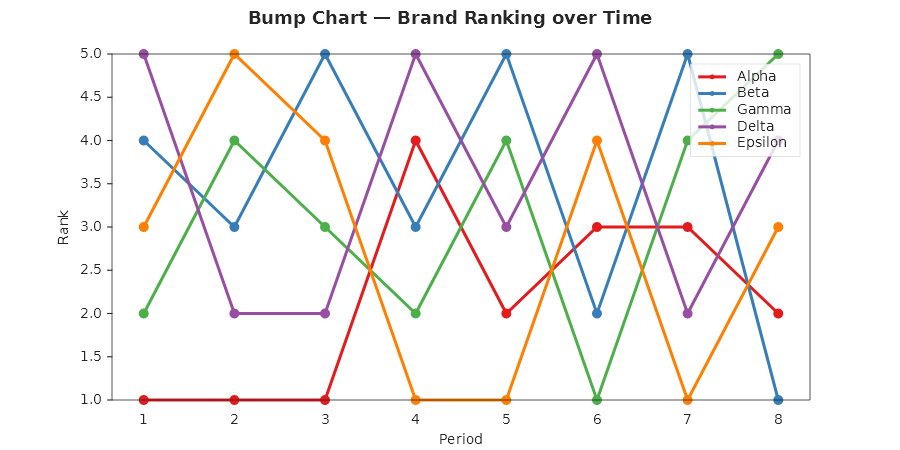
BumpChart draws one marked line per group in one colour of the theme's cycle and names each group at the end of
its line, in the line's colour, so the chart needs no legend. It sets the Y limits itself, because they make the
chart: from the lowest rank plus a half at the bottom to a half at the top, so rank 1 is on top and a marker on the
first or last rank is a whole circle. The Y axis is ticked at every whole rank. The X axis is left to the data: for a
handful of whole-number positions such as years, .SetXTickLocator(new MultipleLocator(1)) gives one tick per year
instead of halves.
Ties and fractional ranks (the average rank of a tie, 2.5) are drawn as given; ranking the values is the caller's
job. A missing rank (double.NaN) leaves a gap in the line, not a bridge, and a line whose last rank is missing is
named at the last rank it has. A rank below 1 is refused. The last argument runs once per line, after the verb has
built it: set s.Color there to keep a palette of your own, or s.LabelPlacement = SeriesLabelPlacement.Legend to
put a name back in the legend.
Control chart
An individuals control chart: the values in time order, the centre line, the control limits three sigma either side, and every value beyond a limit marked:
double[] day  = [1, 2, 3, 4, 5, 6, 7, 8, 9, 10, 11, 12, 13, 14, 15];
double[] fill = [50.2, 49.8, 50.1, 50.4, 49.9, 50.0, 54.6, 50.3, 49.7, 50.1, 50.5, 49.6, 50.2, 45.6, 50.0];

Plt.Create()
    .WithTitle("Fill weight")
    .WithSize(800, 450)
    .AddSubPlot(1, 1, 1, ax => ax
        .ControlChart(day, fill, configure: parts => parts.Violations.Label = "beyond a limit")
        .SetXLabel("Day")
        .SetYLabel("Weight (g)"))
    .Save("control_chart.svg");
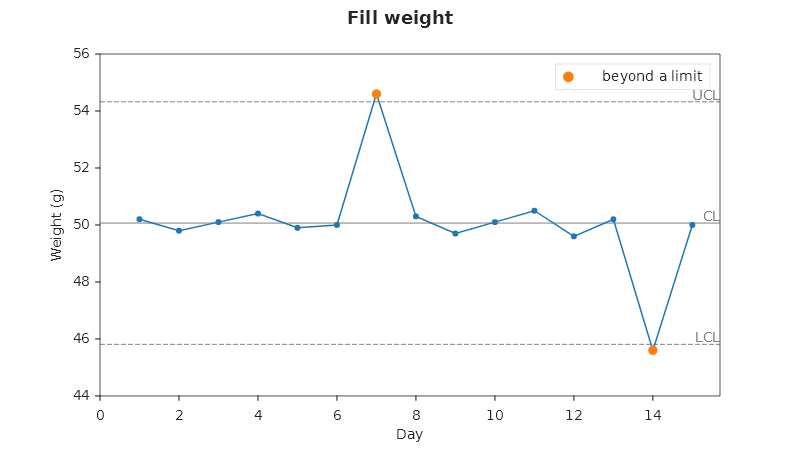
Unless you pass limits, they are estimated the individuals chart's way: the centre is the mean of the values, and
sigma is the average moving range (the mean distance between each value and the one before it) divided by 1.128.
The limits stand three sigma below and above the centre. Limits from an earlier period are drawn as given, with
nothing estimated: ax.ControlChart(day, fill, new ControlLimits(Center: 50.1, Lower: 48.9, Upper: 51.3)).
Only the first of the Western Electric rules is checked: a value strictly beyond a limit is a violation. The values
are one line with a marker on each; the violations are a scatter series in the theme's second colour, drawn over
them. The centre line (CL) and the limits (LCL, UCL) are reference lines across the plot, and the automatic range
takes them in, so they are drawn inside the plot even when every value lies between them. A missing value breaks
the line, is left out of the estimate and is never a violation; the moving range spans the gap. Nothing is in the
legend until you name a part: ControlChartParts hands you the values, the violations and the three lines.
Stream graph
A stacked area chart whose stack floats around the middle of the plot instead of standing on zero, so the layers flow into one another and the whole swells and thins with the total:
using MatPlotLibNet.Rendering.TickLocators;

double[] year = [2019, 2020, 2021, 2022, 2023];

Plt.Create()
    .WithTitle("Listening by genre")
    .WithSize(800, 450)
    .TightLayout()
    .AddSubPlot(1, 1, 1, ax => ax
        .StreamGraph(year,
        [
            new BarGroup("Rock",       [8, 7, 6, 5, 4]),
            new BarGroup("Pop",        [3, 5, 7, 8, 9]),
            new BarGroup("Jazz",       [2, 2, 3, 3, 4]),
            new BarGroup("Electronic", [1, 2, 4, 6, 7]),
        ])
        .SetXTickLocator(new MultipleLocator(1))
        .SetXLabel("Year")
        .WithLegend(LegendPosition.OutsideRight))
    .Save("stream_graph.svg");
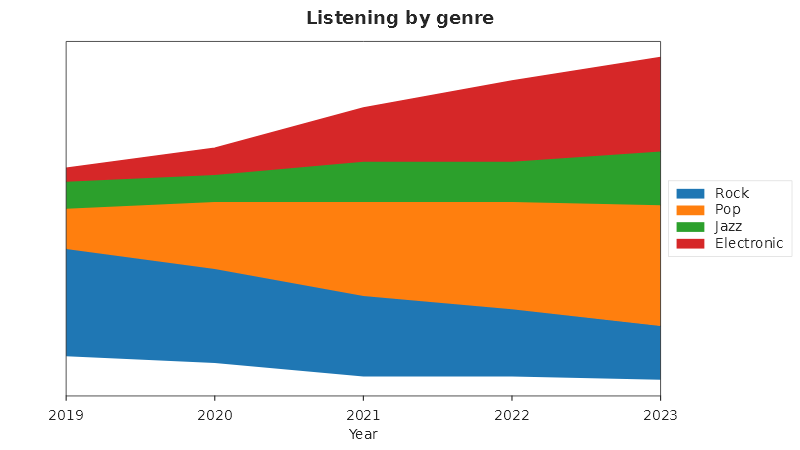
A layer's value is the thickness of its stream, read as the distance between its two edges; the first layer is
the lowest. Where the stream lies up and down means nothing, so the Y axis has no ticks:
.SetYTickLocator(new AutoLocator()) after the call brings them back, and the numbers then name positions, not
values. The baseline is the StackedBaseline you pass: Wiggle (the default: matplotlib's wiggle, the lower
layers weigh more), WeightedWiggle (matplotlib's streamgraph layout, which also follows each layer's slope,
weighted by its size), Symmetric (the middle of the total on the middle line) or Zero (a plain stacked area
chart).
Each layer is one opaque area series, named in the legend, so a click on its entry hides that layer alone. Unlike
StackPlot, which is one series whose layer names do not reach the legend, every layer here takes a colour slot of
its own. A value is 0 or more; a negative one is refused. A missing value (double.NaN) is a gap: on the floating
baselines in every layer at that x, on Zero in that layer and the ones above it. The stream fills the plot, so the
legend goes beside it, as above.
Horizon chart
A signed series folded into a stack of bands so a long series fits a short strip: each band is a slice of the series' own peak, in a deeper shade of its band's colour.
double[] day = [.. Enumerable.Range(0, 60).Select(i => (double)i)];
double[] anomaly = [.. day.Select(d => 40 * Math.Sin(d / 5.0))];

Plt.Create()
    .WithTitle("Temperature anomaly")
    .WithSize(900, 180)
    .AddSubPlot(1, 1, 1, ax => ax
        .Horizon(day, anomaly, bands: 4)
        .SetXLabel("Day"))
    .Save("horizon_chart.svg");
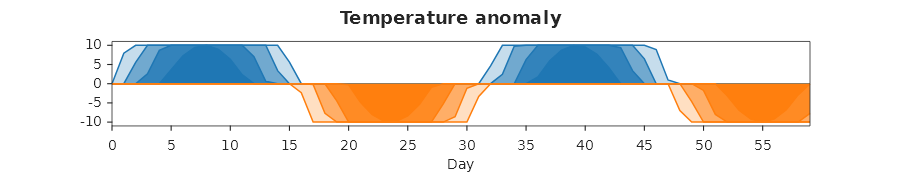
A band's height is the largest finite |y| divided by bands; band k folds the part of the series between
k × height and (k + 1) × height down onto one strip, so a series many times taller than the plot still fits
it. The non-negative part of the series folds into one colour group and the negative part into another, so a
signed series reads as two hues instead of one unreadable one; a series with no negative value draws only the
first. Each band is one area series, drawn lowest first so a higher band's colour sits on top where bands overlap;
none of them carries a label, since the bands' own stacking is the reading. HorizonParts hands you Positive and
Negative, each the bands of its side, lowest first. At least one y must be finite; bands must be at least 1.
Connected scatter
Two measures that change together over time, one point per moment, joined in time order. There is no verb for it: it is a line with markers, labelled at the points that matter:
double[] unemployment = [5.0, 4.6, 4.4, 3.9, 3.7, 8.1, 5.3, 3.6, 3.6];
double[] inflation    = [0.1, 1.3, 2.1, 2.4, 1.8, 1.2, 4.7, 8.0, 4.1];

Plt.Create()
    .WithTitle("Unemployment and inflation, 2015 to 2023")
    .AddSubPlot(1, 1, 1, ax => ax
        .Plot(unemployment, inflation, s => { s.Marker = MarkerStyle.Circle; s.MarkerSize = 7; })
        .Annotate("2015", unemployment[0], inflation[0])
        .Annotate("2023", unemployment[^1], inflation[^1])
        .SetXLabel("Unemployment (%)")
        .SetYLabel("Inflation (%)"))
    .Save("connected_scatter.svg");
A line draws its points in the order given, so the x values may go back and forth. Arrow heads along the segments, to show the direction, are not drawn.