Latency heatmaps
Install:
dotnet add package MatPlotLibNet
A latency heatmap answers the question an average cannot: did the slow requests get slower, or are there simply more of them? It is a histogram over time. Each column is one slice of the clock, each row is one latency bucket, and the colour of a cell is how many requests landed in that bucket during that minute.
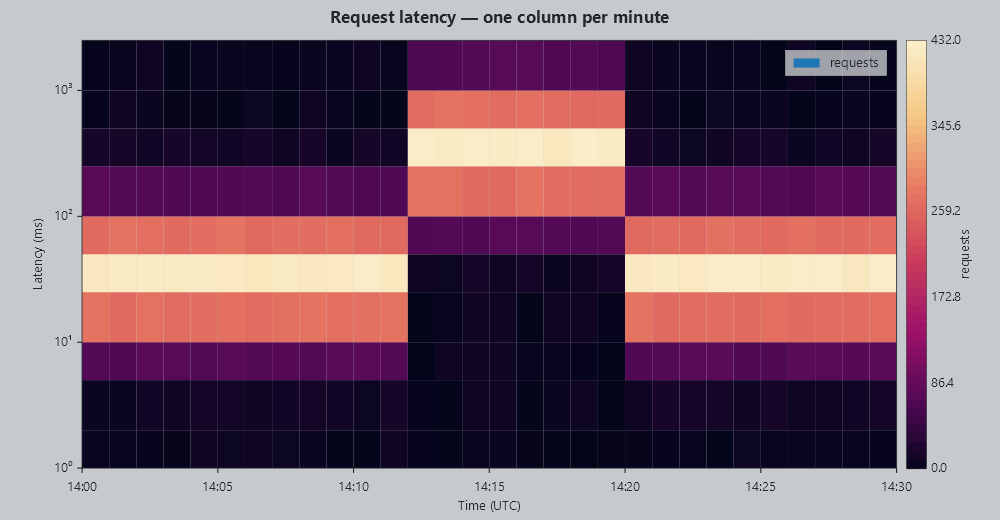
Read it as a shape. The bright band is where most requests are. When it drifts upward, everything got slower. When a second band appears above the first, one code path got slow while the rest stayed fine — and that is exactly the case a p99 line reports as "the p99 rose" without saying why.
The recipe
Use Pcolormesh. It takes the edges of the cells rather than a bare matrix, which is what lets the bottom
axis carry a real clock and the side axis carry real millisecond bucket edges. There is one more edge than there
are cells along each direction: 31 minute boundaries make 30 columns, 11 bucket edges make 10 rows.
using MatPlotLibNet.Models;
using MatPlotLibNet.Styling.ColorMaps;

var start = new DateTime(2026, 9, 12, 14, 0, 0, DateTimeKind.Utc);

// One edge more than there are cells, in both directions.
double[] minutes = [.. Enumerable.Range(0, 31).Select(i => start.AddMinutes(i).ToOADate())];
double[] buckets = [1, 2, 5, 10, 25, 50, 100, 250, 500, 1000, 2500];      // milliseconds

// counts[bucket, minute] — how many requests fell in that bucket in that minute.
var counts = new double[buckets.Length - 1, minutes.Length - 1];

Plt.Create()
    .WithTitle("Request latency — one column per minute")
    .WithTheme(Theme.OpsPanel)
    .WithSize(1000, 520)
    .AddSubPlot(1, 1, 1, ax => ax
        .Pcolormesh(minutes, buckets, counts, s =>
        {
            s.ColorMap = PerceptualColorMaps2.Rocket;
            s.Label = "requests";                 // names the value column of the data table
        })
        .SetXDateAxis()                       // the edges are OLE dates; this makes them read as a clock
        .SetYScale(AxisScale.Log)             // latency is log-distributed, so the buckets are too
        .SetXLabel("Time (UTC)")
        .SetYLabel("Latency (ms)")
        .WithColorBar(cb => cb with { Label = "requests" }))
    .TightLayout()
    .Save("latency.svg");
Three things make it a latency heatmap rather than a grid of coloured squares:
| What | Why |
|---|---|
Pcolormesh, not Heatmap |
A heatmap takes a bare matrix and numbers its cells 0, 1, 2. A mesh takes the coordinates you give it, so a minute stays a minute. |
SetXDateAxis() |
A date is stored as a number. Without this the reader sees 46277.58 instead of 14:15. |
SetYScale(AxisScale.Log) |
Latency spans decades. On a linear axis the 1-to-25 ms rows collapse into a line and the tail takes the whole panel. |
The cells reach the spines on all four sides — a mesh fills its plot area exactly, the way a heatmap does, so there is no gutter between the outermost cells and the frame.
Choosing the bucket edges
The edges are yours to pick, and they do not have to be evenly spaced. A 1-2-5 ladder over each decade is the usual choice because it puts roughly the same number of buckets in every decade:
double[] buckets = [1, 2, 5, 10, 25, 50, 100, 250, 500, 1000, 2500];
Two rules worth keeping:
- Put the ceiling where your timeout is. A request that takes longer than the timeout is a different event, and giving it its own top bucket keeps it from stretching the axis over everything else.
- Do not change the edges while a screen is up. An operator learns where the rows are. Moving them means the picture changes without the system changing.
Filling the counts
The library draws the histogram; counting is yours. The shape is one pass over the samples:
static int BucketOf(double milliseconds, double[] edges)
{
    for (int i = 1; i < edges.Length; i++)
    {
        if (milliseconds < edges[i]) return i - 1;
    }

    return edges.Length - 2;                 // anything past the top edge belongs in the top bucket
}

foreach (var sample in samples)
{
    int minute = (int)(sample.At - start).TotalMinutes;
    if (minute >= 0 && minute < counts.GetLength(1))
    {
        counts[BucketOf(sample.Milliseconds, buckets), minute]++;
    }
}
Reading the numbers back
figure.ToDataTables() gives the same data as a table, one row per cell, named by the clock time and the bucket
edge the cell starts at rather than by a row and column number. That is what a screen reader reads, what the
chart_data_table tool hands an AI agent, and what ToCsv() writes. Give the series a label and it names the
value column:
ax.Pcolormesh(minutes, buckets, counts, s => s.Label = "requests")
| Time (UTC) | y | requests |
|---|---|---|
| 2026-09-12 14:00 | 25 | 318 |
| 2026-09-12 14:01 | 25 | 297 |
| 2026-09-12 14:00 | 50 | 402 |
The first column takes the name of the x-axis label and is spelled as a clock, because the column is marked as a
position on that axis. The second keeps the plain name y: a y column usually carries a series name, and the
table would rather repeat y than throw a series name away.
A percentile line on top
A heatmap shows the distribution; a line shows the summary. Drawing the p99 over the mesh gives both, and the line lands in the right place because both are in the same data space:
ax.Pcolormesh(minutes, buckets, counts)
  .Plot(minuteCentres, p99PerMinute, s => { s.Label = "p99"; s.LineWidth = 2; })
  .SetYScale(AxisScale.Log)
  .WithLegend();
See also
- Heatmaps & Colormaps — the plain heatmap, colorbars, normalisation, and the full colormap list
- Dashboard tiles & timelines — the control-room screen this panel usually sits on
- Distribution charts — histograms, box plots and violins for one moment rather than over time
- Tick formatting — date locators and formatters for the clock axis
- Accessibility — the data table behind every chart